New Items
Creating a New Inventory Item
To create a new inventory item, select New Items from the Inventory Menu. You will be prompted to enter the new Style Number.
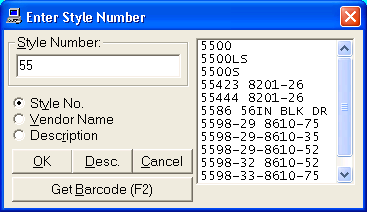
Entering the New Style Number
Enter a new alpha/numeric style number.
As you start typing the style number, a box will appear to the right with similar existing style numbers.
As you keep typing, this list will narrow down, and eventually be empty.
If this list is not empty, you are trying to add a duplicate style number.
You cannot add a duplicate style number. Choose OK (or press Enter) to continue.
Tip: Do not enter the fabric type in the style number. Instead, include this in the Description field.
The Style Number will be automatically transferred to the Inventory Form.
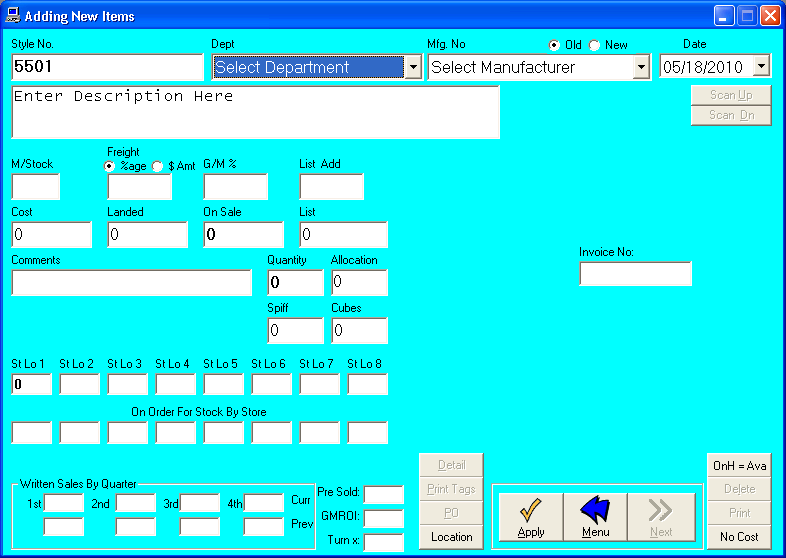
Setting up the New Item
Next, click on the drop-down for the Department and select which vendor this item is from.
If this is a new manufacturer, click on the New Manufacturer and type in the manufacturer's name.
You can use a shortened version of the manufacturer's name.
For example, if the company name is Bassett Furniture Company, Bassett is sufficient.
If you have already used this manufacturer, then the old manufacturer is the default, just find the manufacturer in the drop down list and select it.
The Date will default to the current date.
Entering the Item Description
Go to Description.
The Description is the most important field.
This is what prints on the top line on Price Tags, Bill Of Sale, and Purchase Orders.
TIP:You can save items on sales with the sizes, color, and finish. You do not need to enter that here.
Enter in the description anything that you need to reorder this item, other than the style.
An example might be: 86" G/O SOFA R-2651-BLUE
Other Options
If this item is a top seller, enter a Minimum Stock Level in the M/Stock field to be flagged when the inventory drops below this number.
If left blank, you will not be flagged when stock runs low.
For multiple stores, this minimum stock level is for each location.
Tip: In most cases, leave this blank, unless you want to be flagged. This is usually used only for best-sellers.
Enter Freight Percentage as a number like 10, Gross Markup as a number like 47, List Add as a number like 40, and Cost.
When you tab off Cost, Landed, On Sale, and List will be automatically filled in.
If you wish to change On Sale, it will automatically update the Gross Markup when you tab off the On Sale field.
For more information click on Price Tag Options.
You can then enter an extra note in Comments which will appear on the retail price tags.
Enter the total number of this item Physically On Hand for sale in the Quantity box.
If you have one location, enter the same quantity in the St. Loc1.
If you have multiple stores, enter the quantity for each store in the respective box.
The total number you have added will show in Allocation. Allocation must equal Quantity.
Enter the Invoice Number inside the gray box.
Tip: If you are entering starting inventory, use 999999 (instead of looking up each invoice).
Printing Tags
Click Print Tags to print retail price tags for display.
Select the printer you want to print tags on, size of tag to be printed.
Click Done when completed.
Saving the item
Finally, Click Apply to post the item.
When you are done, choose OK to enter another piece of merchandise, or Main Menu to return to the front screen.
A "Click on Selection" form will appear.
If you choose More from this Manufacturer<, most of the data will remain on screen to reduce input time.
If you choose New Manufacturer the data will be erased from the screen, to ease entry of different data.
Package Prices
You want to make a group price on a tabletop and base. The series is 2200, the top is 2200-20 and the base is 2200-40.
Enter the inventory item as 2200-20/40. Add the cost together, and combine the description.
This method should only be used when you always sell the sets the same way.
Tip: Be consistent with your numbering convention.
You sell a sofa/loveseat combo, but normally list them as separate inventory items, because they can be purchased separately. Create a package price if you can only buy them as a set.
We can also create kits which consist of multiple items at a
special price.